EaseUS – Windows Disk Cloning Software (1PC) – Clone & Upgrade Your Windows Drive

TL;DR

  • Clone Windows disks in 3 easy steps
  • Sector-by-sector disk and partition cloning
  • Migrate OS without reinstalling
  • Upgrade HDD to SSD with zero downtime
  • Guaranteed bootable results
  • No technical skills required

Quick Overview

Alternative to:

  • Acronis True Image
  • AOMEI Backupper
  • Clonezilla
  • DiskGenius
  • Macrium Reflect

Best for:

  • Data Recovery Professionals
  • IT Teams
  • Small Businesses
  • System Administrators

Compatibility:

  • Operating Systems:
    Windows

Disk cloning does not have to be complicated! With a simple 3-step process and guaranteed results, Windows users can migrate safely in minutes. Presenting –

EaseUS – Windows Disk Cloning Software


This high-speed Windows disk-cloning software lets you clone entire disks, system drives, or individual partitions with precision.


It works independently of the operating system, file system, or partition structure, making it a reliable solution for all cloning scenarios.


EaseUS Disk Cloning Software is suitable for beginners and advanced users alike. It –

  • Supports sector-by-sector cloning
  • Ensures a bootable result
  • Works with all major disk brands and interfaces


It eliminates common cloning headaches by enabling seamless OS migration, HDD-to-SSD upgrades, and data backup without reinstalling Windows.


Your system settings, applications, and files remain fully intact, saving hours of setup time and reducing risk.


Designed for personal, professional, and enterprise use, this software also supports failing disk recovery, portable Windows creation, and WinPE bootable media.


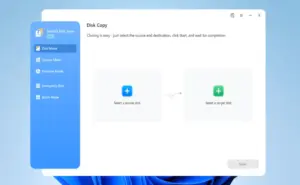
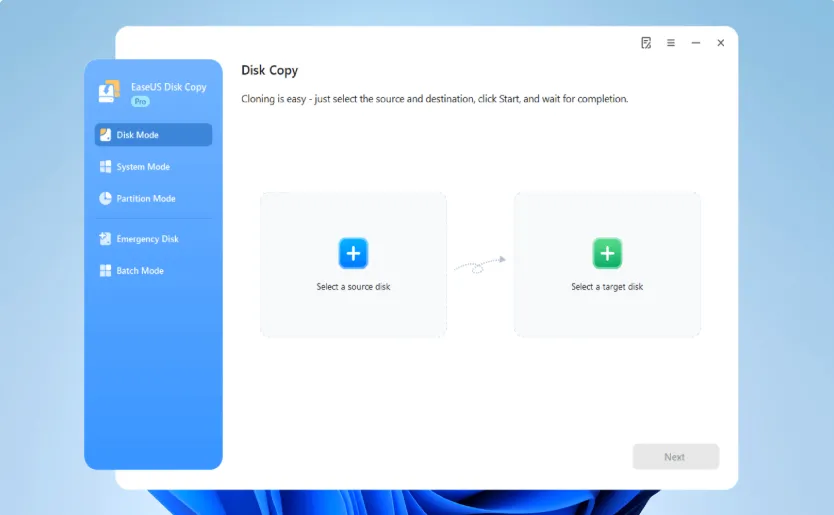
1. Choose the source disk: Launch EaseUS Disk Copy, select the source disk under the Disk Mode.

Windows Disk Cloning Step 1

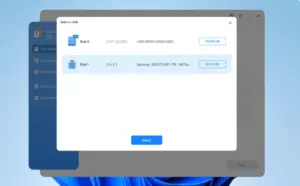
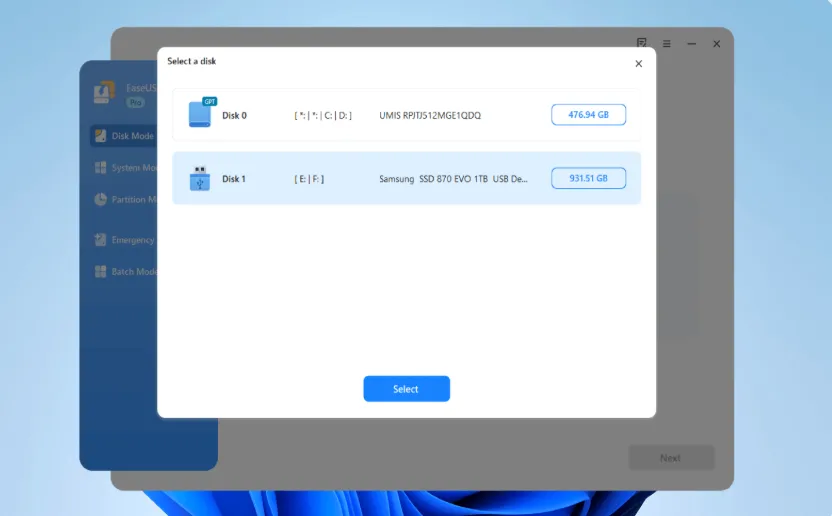
2. Select the target HDD/SSD: Choose the target disk, and ensure it has larger space than the source one.

Windows Disk Cloning Step 2

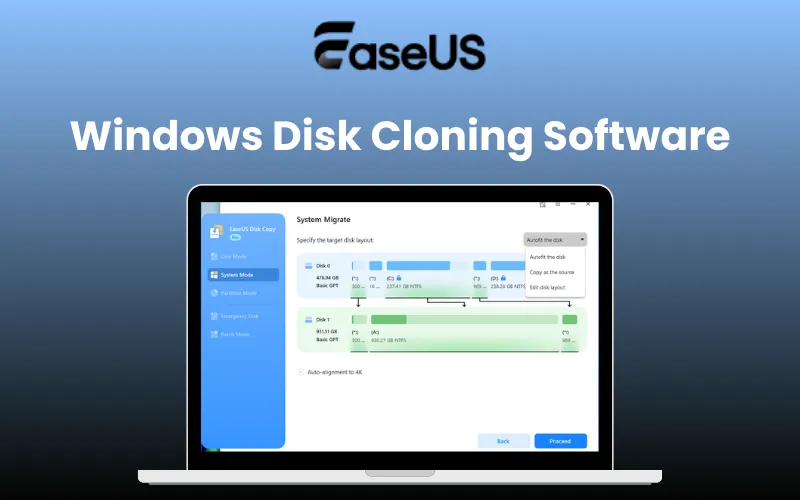
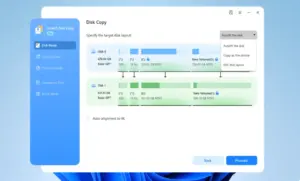
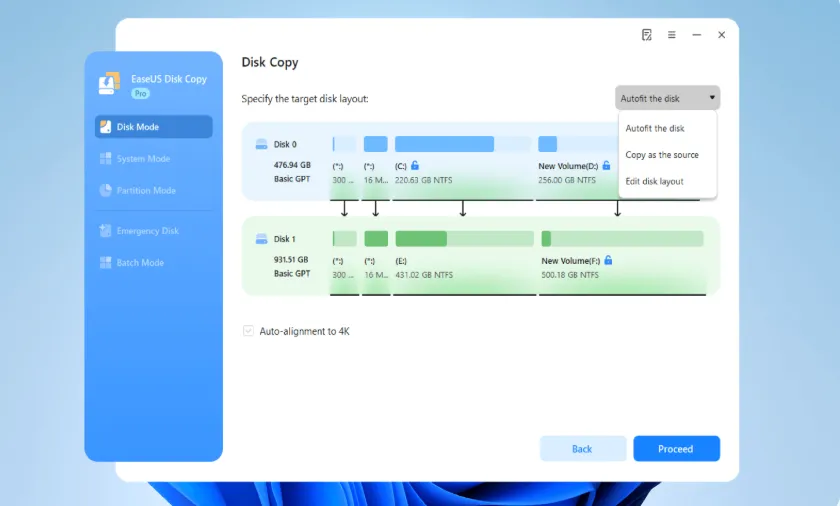
3. Adjust disk layout and clone: You can choose to ‘autofit the disk’, ‘copy as the source’, or ‘edit disk layout’ as needed. Then click Proceed to start cloning.

Windows Disk Cloning Step 3

Introduction To EaseUS Disk Cloning Software:

Youtube video

Features Of EaseUS – Disk Cloning Software:

<b>Dashboard</b>

Easy Disk & Partition Cloning:

  • Clone entire disks, system drives, or individual partitions to suit different upgrade and backup needs.
  • Supports disk cloning, system cloning, and partition cloning modes.
  • Duplicate HDDs, SSDs, or partitions with a single click for fast, effortless data transfer.
  • Migrate only the operating system or clone just the used sectors to fit smaller SSDs.
  • Automatically resize partitions or keep the original layout during cloning.
  • Manually edit the disk layout while optimizing partitions for SSD performance.
  • Works with HDDs and SSDs from different brands.
  • Supports GPT disks and multiple Windows editions, including server versions.
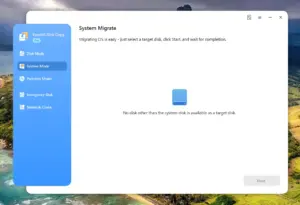
<b>System Migration</b>

Windows & System Migration:

  • Migrate Windows 10/11 to HDD, SSD, M.2, or NVMe without reinstalling or reactivating Windows.
  • Preserve system settings, applications, and personal files during migration.
  • Upgrade to SSDs or M.2/NVMe drives without wasting space.
  • Clone an old computer’s hard drive to a new PC, including the operating system, apps, and files.
  • Boot directly from the cloned drive on the new system.
  • Create a portable Windows USB drive through system cloning for easy transport and use.
  • Transfer data between drives quickly without data loss or OS reinstallation.
  • Use it for portable upgrades, backups, and on-the-go storage management.
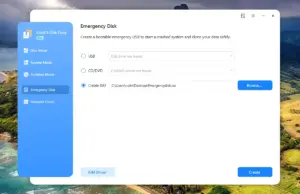
<b>Emergency Disk</b>

Emergency Disk & Recovery:

  • Perform precise bit-by-bit cloning while automatically skipping bad or blank sectors.
  • Safely transfer data from aging or damaged drives with uninterrupted cloning.
  • Safely clone data from failing or partially damaged hard drives to healthy storage before the drive fails completely.
  • Clone drives as full backups for quick recovery when the original drive fails.
  • Replace a failed drive with the cloned copy without time-consuming data restoration.
  • Build bootable USB, CD, or DVD media to start unbootable systems.
  • Use bootable media for system recovery, disk cloning, data migration, and troubleshooting.
<b>Network Cloning</b>

PC-to-PC & Network Cloning:

  • Clone an old computer’s hard drive to a new PC, including the OS, applications, and files.
  • Transfer complete systems between computers for faster device upgrades and replacements.
  • Boot directly from the cloned drive on the new system.
  • Transfer data between drives quickly without reinstalling the operating system.
  • Support disk cloning across different HDD and SSD brands.
  • Manage system and storage migrations across multiple compatible Windows environments.

Additional Features:

  • High-speed cloning with optimized performance and shorter wait times.
  • Safe and reliable cloning with guaranteed bootable results.
  • Broad compatibility with Windows 11, older Windows versions, Windows Server, and FAT/NTFS file systems.
  • Beginner-friendly interface with a simple 3-step cloning process.
  • All-in-one solution combining cloning, migration, backup, recovery, and bootable media creation.
  • Enterprise-friendly licensing for cloning multiple systems with a single license.
  • Designed for on-site and remote disk cloning across multiple environments.

Why Choose EaseUS Windows Disk Cloning Software?

  • Upgrade to an SSD without reinstalling Windows, keeping your apps, files, and settings intact.
  • Clone your entire hard drive to create an exact copy of your Windows system.
  • Migrate Windows to a larger drive without starting your PC setup from scratch.
  • Replace failing or aging drives before hardware problems cause data loss or disruption.
  • Move your operating system between SSDs and HDDs based on your storage and performance needs.
  • Keep your existing programs, files, and settings instead of reinstalling and reconfiguring everything.
  • Create a bootable copy of your system for easier recovery when something goes wrong.
  • Clone drives for PC upgrades and replacements to simplify hardware migrations.
  • Save time by transferring your complete Windows environment instead of rebuilding it manually.
  • Improve PC performance by moving Windows from an older HDD to a faster SSD.
 

Technical Specifications:

System Requirements:

  • CPU: at least an X86 or compatible CPU with a main frequency of 500 MHz.
  • Disk space: 1GB or higher.
  • CD/DVD ROM.
  • PS/2 or USB mouse.
  • PS/2 or USB keyboard.
  • RAM: at least 1GB

Supported Operating System:

  • Windows XP x86/x64
  • Windows Vista x86/x64
  • Windows 7 x86/x64
  • Windows 8 x86/x64
  • Windows 8.1 x86/x64
  • Windows 10
  • Windows 11

Supported File Systems:

  • FAT12/FAT16/FAT32/NTFS

Supported Hardware:

This Disk Cloning Software can be used to copy data among the following types of devices:
  • IDE HDD, SSD, USB HDD, SCSI HDD, SATA HDD, FireWire (IEEE 1394) HDD, etc.

EaseUS is best for:

  • Data Recovery Professionals
  • IT Teams
  • Small Businesses
  • System Administrators

Choose Your Plan

Pro Plan - Annual Access
Original price was: $39.95.Current price is: $19.98.
Pro Plan - Lifetime Access
Original price was: $59.95.Current price is: $29.98.
With DealClub
$16.98
$39.95
Without DealClub
$19.98
$39.95
Buy Now
Limited Time Deal

Deal Terms

  • Access via redemption of coupon code
  • 30-Day Coupon Code Validity
  • One Coupon Code for one user/account
  • Coupon Codes are not stackable
  • For New Users Only
  • Free Updates
  • Free Support
  • Accessible only on Windows Desktops with Windows 11/10/8/7 OS

Customer Testimonials

EaseUS Disk Copy creates sector by sector clones of partitions or hard disks, independent of operating system, file systems or partition scheme. It's a versatile tool for both the novice and experienced user.

-MUO

The lowest-priced drives lack these niceties, but free programs can get the job done, too. We've had luck using the free Home version of EaseUS's Disk Copy.

-PC Magazin

EaseUS Disk Copy copies any disk or partition sector-by-sector for an exact copy of the original. Disk Copy is a perfect tool for upgrading your operating system to a new, larger hard drive, or just making a quick clone of a drive full of files. Its with easy-to-use interface, this app is a fast, effective tool for quick drive copying. Lifehacker

-Lifehacker

Plans & Features

Choose the perfect plan for your needs.

Plans & Features
Pro Plan - Annual Access
Pro Plan - Lifetime Access
$39.95 $19.98
Buy Now
$59.95 $29.98
Buy Now
Sector level cloning
One-click OS migrate
Resize partition when copying disks
Support GPT disk
Create WinPE bootable disk
Support Windows 11/10/8/8.1/7/Vista/XP
Local disk copy
30-day money-back guarantee, 100% security assurance, free technical support
One license for one computer
Free upgrades

1-year

Lifetime

Plan 1 of 2

Pro Plan - Annual Access

$39.95 $19.98
Buy Now
30-Day Refund | Annual & Lifetime Access
  • Sector level cloning
  • One-click OS migrate
  • Resize partition when copying disks
  • Support GPT disk
  • Create WinPE bootable disk
  • Support Windows 11/10/8/8.1/7/Vista/XP
  • Local disk copy
  • 30-day money-back guarantee, 100% security assurance, free technical support
  • One license for one computer
  • Free upgrades: 1-year

Frequently Asked Questions

Find answers to common questions about EaseUS – Windows Disk Cloning Software

How long does it take to clone a 1TB drive?

It depends on the drive type and interface. HDDs take several hours, while SSD or NVMe cloning can often finish in under an hour.

How can I clone HDD to SSD without data loss?

By cloning all partitions at the sector level, including the system and files. The SSD remains bootable with no OS reinstallation needed.

How do I upgrade to a larger SSD and keep Windows 10/11?

Clone the system, apps, and files to the new SSD. Partitions automatically resize, and Windows boots normally afterward.

Can a disk with bad sectors be cloned?

Yes. Damaged sectors are skipped while healthy data is copied, allowing cloning to complete safely

Can Windows be migrated to a new PC with different hardware?

Yes. System settings and drivers adapt to new hardware while preserving files and installed programs.

Can I clone NVMe SSD to NVMe SSD?

Yes. NVMe-to-NVMe cloning is supported, very fast, and the new drive boots immediately after cloning.

Customer Feedback

Customer Reviews (0) Customer Q&A (0)

No Reviews Yet

Be the first to try this deal and share your experience.

You must purchase this product to leave a review.

Be The First To Ask

Get clarity before you buy—your question might help others too.

×

You Might Also Like

AWZ AnyPorter - Location Spoofer | Lifetime Deal
EaseUS Fixo - Repair Documents, Photos, Videos & Audio

EaseUS Fixo - Repair Documents, Photos, Videos & Audio

, , , , , , , ,

BabyPNG - Image Compressor & Converter | Lifetime Access

BabyPNG - Image Compressor & Converter | Lifetime Access

, , , , , , ,

ZipKing - File Compressor | Lifetime Access
Choose Plan
Pro Plan - Annual Access
Original price was: $39.95.Current price is: $19.98.
Pro Plan - Lifetime Access
Original price was: $59.95.Current price is: $29.98.
Buy with DealClub
$16.98 $39.95
Buy without DealClub
$19.98 $39.95

Deal Terms

  • ✓ Access via redemption of coupon code
  • ✓ 30-Day Coupon Code Validity
  • ✓ One Coupon Code for one user/account
  • ✓ Coupon Codes are not stackable
  • ✓ For New Users Only
  • ✓ Free Updates
  • ✓ Free Support
  • ✓ Accessible only on Windows Desktops with Windows 11/10/8/7 OS
Scroll to Top