


Getting a new iPhone is always exciting. But then comes the hard part. You must transfer all your old phone data to the new one where Native Apple tools often fall short.
For instance, Apple Quick Start can feel incredibly slow; worse case, it sometimes fails completely. Even then, you must wait for a long wireless transfer.
But guess what? There is a better, more reliable way. Say hello to EaseUS MobiMover. This is a powerful, comprehensive MDM software that manages data, handles transfers, & creates backup.
It offers cable-connected reliability. This means faster and more stable transfers. It also offers selective data management. Works across different platforms, and is the perfect choice for a hassle-free data move.
Comprehensive Overview of EaseUS MobiMover
EaseUS MobiMover is more than a simple file mover. It is a comprehensive MDM (Mobile Device Management) Software & a full manager for your iOS data. It works on both Windows PC and Mac computers.
What does it offer?
- iPhone to iPhone Data Transfer: It transfers data directly between two phones, including the latest iPhone models from iPhone 15 up to iPhone 17 Pro, making new device setup seamless.
- iPhone to PC Backup: You can back up your iPhone files to your computer. This frees up phone space easily.
- PC to iPhone Data Transfer: You can move music, videos, and files from your computer to your iPhone.
- File Management: It lets you view and delete files right from your computer. No need to use iTunes at all.
- WhatsApp Transfer: It helps you back up and move your WhatsApp chat history. This is a crucial feature for many users.
- HEIC Converter: This utility converts your iPhone’s HEIC photos to JPG format. This makes them easier to share everywhere.
What Data Types MobiMover Supports?
MobiMover handles almost everything on your iPhone, and ensures nothing important is left behind.
- Audio: Music, Voice Memos, Playlists, and Ringtones.
- Images: Camera Roll, Photo Library, and Photo Videos.
- Videos: Movies, TV Shows, and Music Videos.
- Personal Information: Contacts, Messages, Notes, Books, and Voice Mail.
Compatibility:
This software is designed to keep up with Apple’s updates. It works with all the latest iPhone models like iPhone 15 up to iPhone 17 Pro, & supports current versions of iOS and iPadOS. It also works seamlessly on modern Windows and macOS systems.
With that given, let’s walk through the step-by-step process of moving iPhone Data.
Step-by-Step Guide: iPhone to iPhone Transfer
Moving from your old iPhone to your new one with MobiMover is very simple. The process is direct and uses a reliable cable connection. Lets see how you can transfer iPhone data:
Step 1: Download and Connect:
First, download and install MobiMover on your computer. Launch the application. Connect both your old and your new iPhone to the computer. Use a USB cable for each. Tap “Trust This Computer” on both phones when prompted.
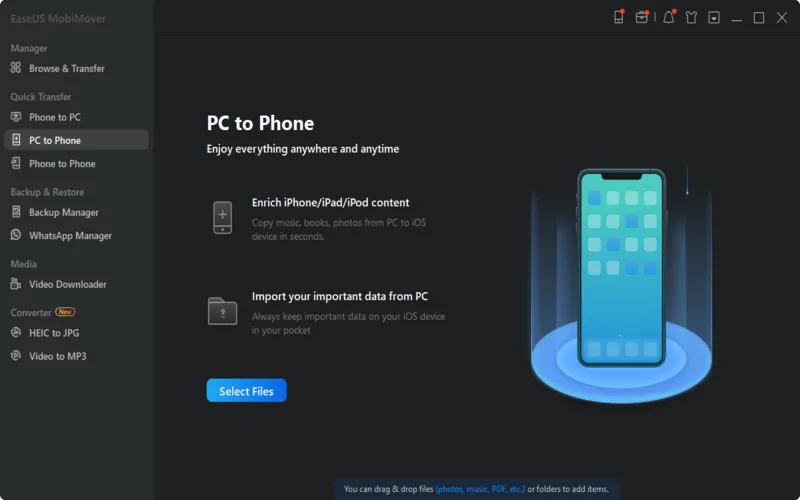
Step 2: Choose the Transfer Mode:
On the MobiMover home screen, you will see a list of functions. Select the “Phone to Phone” transfer mode. MobiMover will automatically recognize your two devices. It will set the old iPhone as the Source. It will set the new iPhone as the Target. If they are backward, click the “Switch” button to correct them.
Step 3: Select Your Data:
A checklist of all supported data categories will appear. You can choose to move everything, or you can only select specific items. For instance, maybe you only want to transfer Contacts and Photos. Uncheck the categories you do not need.
Step 4: Start the Transfer:
Review your selections one last time. Click the “Transfer” button to begin the process. A progress bar will show the status. Keep both iPhones connected and active until it is 100% complete.
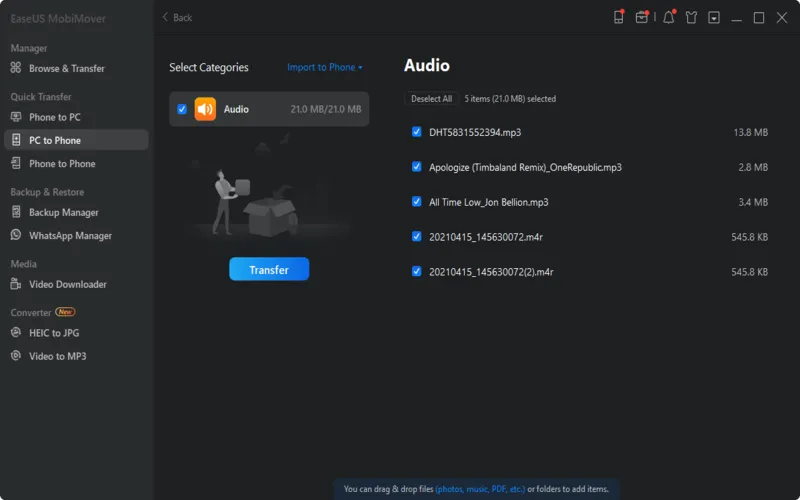
Step 5: Completion:
MobiMover will confirm the transfer is finished. All your selected data is now organized on your new iPhone. You can safely disconnect your devices, and your new phone is now ready to use with all your old memories.
Advanced MobiMover Features
MobiMover is valuable long after your first transfer. It has many advanced features for day-to-day use.
1. Selective Backup:
You can back up only certain files to your computer. You do not need a full system backup every time. This saves time and storage space.
2. HEIC to JPG Conversion:
This is a huge benefit for photo sharing. HEIC is Apple’s efficient photo format. But it is not compatible everywhere. MobiMover converts your photos for universal use.
3. Direct PC File Management:
Use it like an explorer window for your iPhone. You can easily add or delete files like music. This is simpler than using the complex iTunes interface.
4. Video Downloader:
This tool can even download videos and music from YouTube & more than 1000 unique websites. And it saves them directly to your computer or iPhone.
5. WhatsApp Data Management:
This tool allows complete WhatsApp Data backup, transfer & restoration, including chat history. It also provides support for WhatsApp Business, LINE, Viber, Kik, & more.
MobiMover vs. Apple Quick Start: Which Should You Use?
Lets have a look at the features comparison for better decision making:
| Features | EaseUS MobiMover | Apple Quick Start |
|---|---|---|
|
Connection Method
|
USB Cable (Faster, more reliable)
|
Wireless (Slower, prone to drops)
|
|
Selective Transfer |
Yes, choose specific files/categories
|
No, it’s an all-or-nothing full restore |
|
Speed |
Very fast for large amounts of data |
Can be slow, depends on Wi-Fi quality |
|
Cross-Platform |
Yes, Phone to PC/Mac, PC/Mac to Phone |
Limited to Apple-to-Apple transfers |
And this implies that MobiMover is the clear winner for control. It is best if you have huge amounts of data. It is also perfect if you only want to move certain items. It offers stability and speed that wireless methods cannot match.
Final Thoughts
Moving your iPhone data should not be a headache. You should not have to wait hours for a process to finish. You should not have to pay for extra cloud storage.
EaseUS MobiMover gives you back control. It provides a quick, stable, and flexible solution. Whether you are setting up a new phone or just backing up files.
MobiMover is the comprehensive tool you need. Start your perfect, worry-free data transfer today.


