


Creating a presentation often feels like juggling creativity, clarity, and design simultaneously. You start with ideas that make sense in your head but struggle to turn them into visually appealing, well-structured slides.
Between choosing the right visuals, maintaining consistency, and keeping the audience engaged, the process can easily become time-consuming and frustrating.
That’s where AI steps in, not as a shortcut, but as a smart assistant. It simplifies the heavy lifting by understanding your content, organizing it logically, and even suggesting visual and design improvements.
With AI, what once took hours of manual effort can now be achieved in a fraction of the time, allowing you to focus on the story you want to tell rather than the mechanics of formatting it.
AI isn’t here to replace creativity; it’s here to enhance it. It helps you translate ideas into polished, professional slides effortlessly, making the process smoother, faster, and a lot more enjoyable.
If you’re looking to experience this in action, tools like ChatSlide make it even easier to turn your ideas into ready-to-present slides in minutes.
In this blog, we’ll explore how AI-powered tools are transforming the way people create presentations, helping anyone craft slides that truly make an impact.
The Core Problems AI Solves in Presentation Creation
Before diving into the how, it’s worth understanding the why. Why is AI becoming such a game-changer in presentation creation? It addresses three core challenges that most people face when building slides.
1. Time: Turning Hours into Minutes
Manually creating a presentation can be a marathon; researching, structuring ideas, writing content, and designing visuals often take hours or even days. AI tools drastically cut down this effort by automating repetitive tasks and generating drafts or visual suggestions in minutes, freeing you to focus on fine-tuning your message.
2. Design Expertise: No Artistic Skills Needed
Most professionals aren’t trained designers, yet everyone’s expected to deliver visually appealing presentations. AI bridges this skill gap by suggesting layouts, color palettes, typography, and graphics that align with modern design principles. It helps anyone create clean, polished slides effortlessly.
3. Content Structuring: Turning Ideas into Stories
A strong presentation tells a clear, cohesive story. AI assists by organizing your content into logical sections, maintaining flow, and emphasizing key points, essentially acting like a digital storytelling coach. It ensures that your slides not only look good but also communicate your ideas effectively.
By tackling these three core challenges, AI makes presentation creation faster, smarter, and less stressful. Once you understand the problems it solves, the next step is learning how to put it into practice.
Step-by-Step Guide: Making a Presentation with ChatSlide
Here’s a simple walkthrough to show how ChatSlide can help you in your projects:
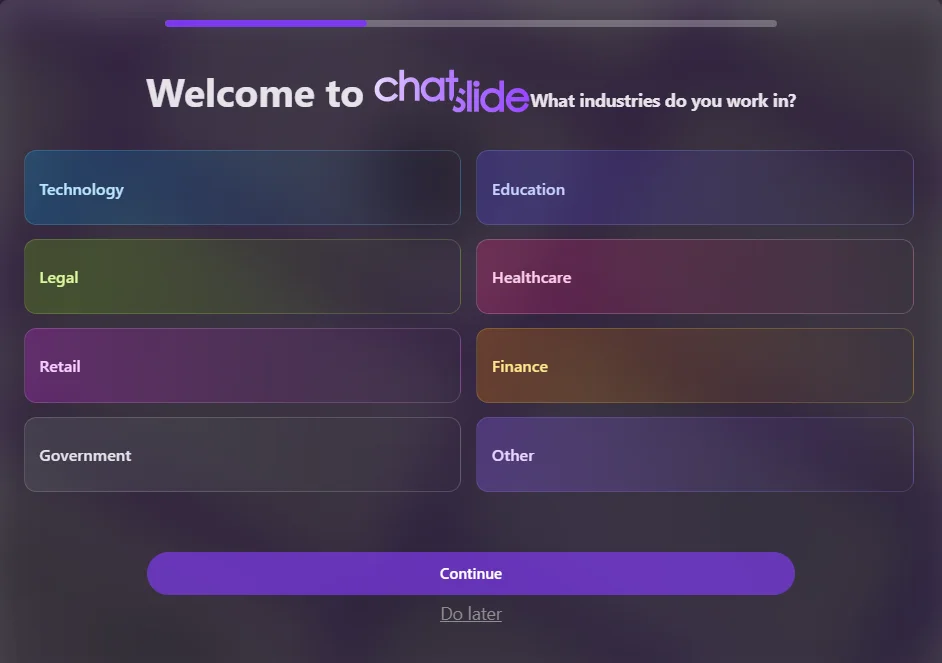
Step 1- Sign Up & Start a New Project
- Head over to ChatSlide and create your account. Once logged in, click “New Presentation” and choose your preferred style.
- ChatSlide offers a variety of templates designed for pitches, reports, educational slides, and more.
Step 2- Input Your Key Points
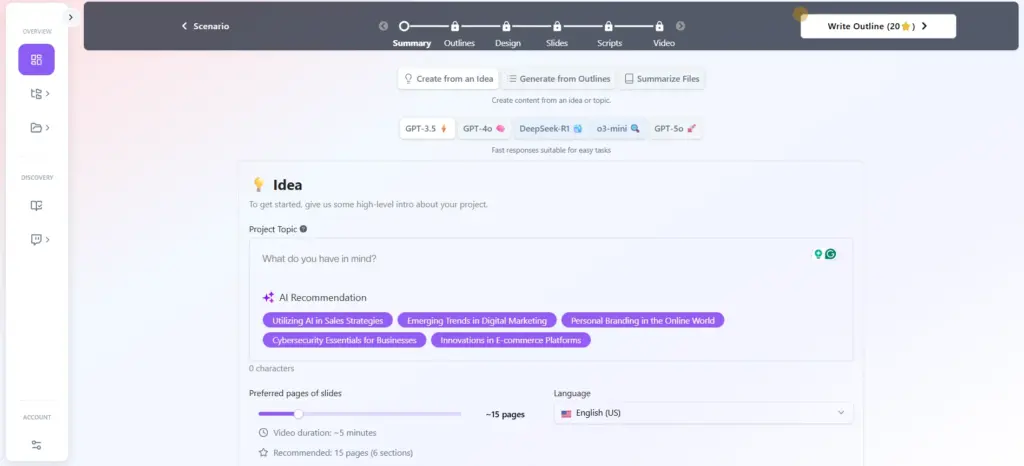
- You don’t need a detailed script ready. Simply input the main ideas or topics you want to cover in the slides.
- ChatSlide uses this input to generate an outline and suggest the best slide order for your presentation.
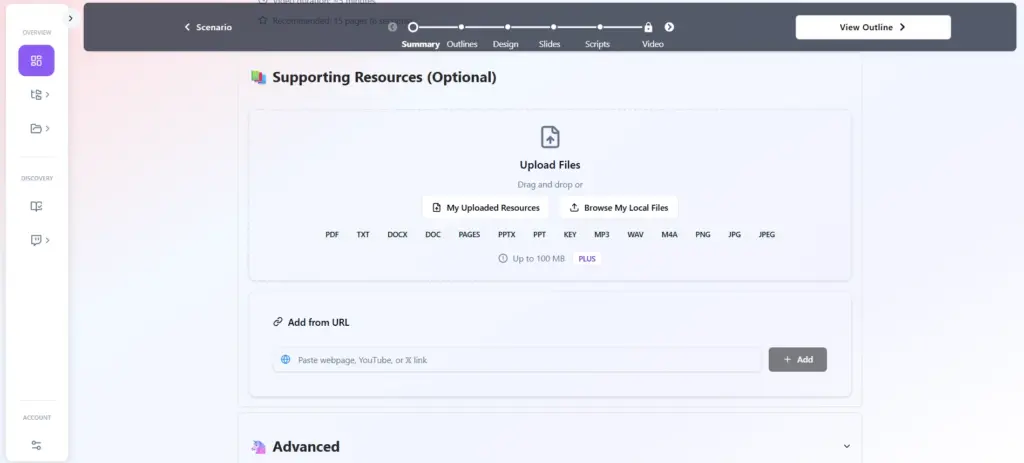
Step 3- Generate Slides and Upload Resources
- You can also upload files or browse from your computer — ChatSlide supports various formats to make content input seamless.
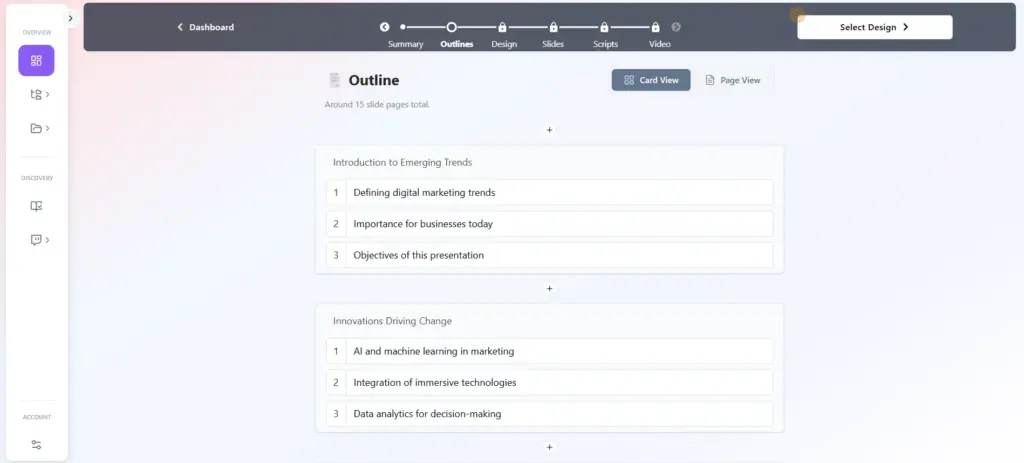
Step 4- Review and Edit Outlines
- ChatSlide automatically generates an outline for your topic.
- You can easily add, remove, or adjust the points to ensure the flow matches your presentation style.
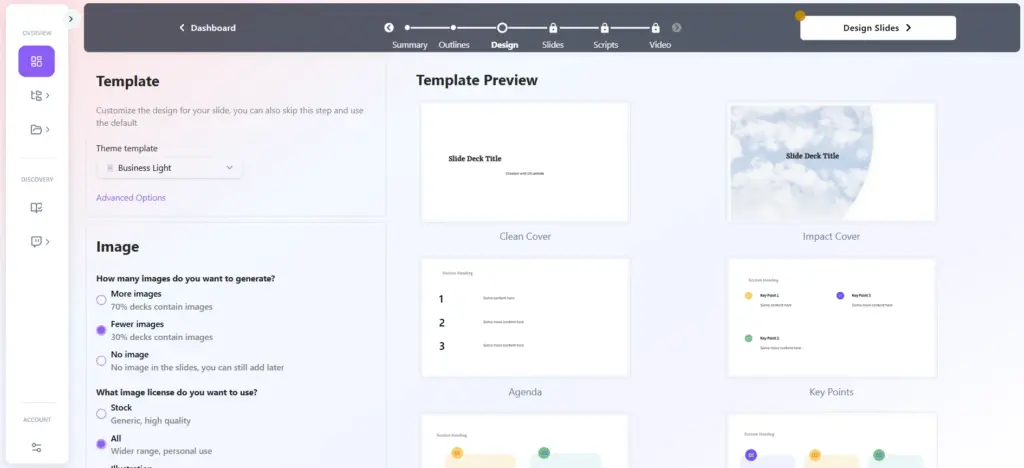
Step 5- Choose and Customize Design Templates
- ChatSlide shows you design template previews for your slides.
- You can pick a style you like and customize colors, fonts, and layouts to match your brand or preference.
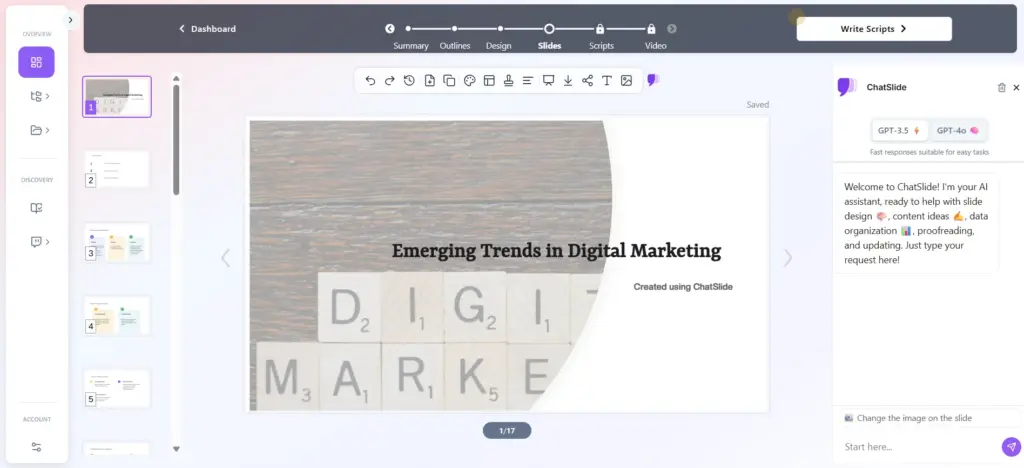
Step 6- Let AI Generate Slides
- Click “Generate Slides,” and watch the magic happen. ChatSlide automatically creates slides with structured content, relevant visuals, and a consistent design that matches your brand.
- Each slide is built to keep your audience engaged and your message clear.
Step 7- Customize & Refine
- Even though AI does most of the heavy lifting, you can still make changes to the colours, fonts, images, and text.
- ChatSlide allows you to personalise every element, so the final output matches your brand or personal style perfectly.
Step 8- Review & Export
- After a quick review, export your slides in your preferred format – PowerPoint, PDF, or even Google Slides.
- You’re presentation-ready without breaking a sweat.
Why ChatSlide is the Best AI Presentation Tool:
There are plenty of AI presentation tools out there, but ChatSlide stands out for several reasons:
1. True All-in-One Functionality
- ChatSlide doesn’t just generate slides; it creates a full presentation experience. From narrative structuring to design, it handles every step, saving you time and mental energy.
2. Professional Designs Without Effort
- ChatSlide’s AI design engine makes sure that every slide looks sleek, modern, and professional. This means you don’t have to worry about color theme, unreadable fonts, or awkward layouts anymore.
3. Smart Visual Recommendations
- AI suggests visuals that match your content. Whether it’s charts, diagrams, or stock images, ChatSlide knows what complements your message best.
4. Intuitive & Fast
- Even if you’re new to presentations or tech in general, ChatSlide’s interface is simple and intuitive. You can go from idea to finished slides faster than ever.
5. Cost-Effective Productivity
- Instead of paying for designers, stock images, or hours of manual work, ChatSlide bundles everything in one tool, helping you save both time and money.
Standout Features of ChatSlide:
AI Presentation Generator:
- Converts text, documents, URLs, and PDFs directly into professional slides, including titles, bullet points, and visuals.
AI Video Creator:
- A key differentiator. It can transform slide decks into engaging videos, complete with:
– AI Narration and Voice Cloning:
- Offers a wide range of voices and languages, and the ability to clone a profile’s voice (on higher tiers).
– Digital Avatars:
- Allows the use of AI-generated human presenters to deliver the content.
Smart Content Generation:
- The AI assistant helps craft compelling text, suggests images, and ensures content structuring is logical for a strong narrative flow.
Export Versatility:
- Supports export formats like PPTX (PowerPoint), PDF, and MP4 (for video), and sometimes KEYNOTE.
Customization:
- Offers drag-and-drop editing, theme matching, and brand sync to ensure consistency.
A Quick Comparison to Help You Pick Smarter:
| Tool | Pricing | Plan | Standout Feature | Best For |
|---|---|---|---|---|
|
$160.50 |
Lifetime plan |
Creates all-in-one content with AI avatars and videos |
Quickly turning slides into branded videos with human-like narration. |
|
|
Gamma |
$96 |
Freemium, Annual plan |
Generates visual decks and documents with minimal input |
Generating stunning, polished designs from a single text prompt. |
|
Presentations.AI |
$50.55 |
Freemium, Annual plan |
Provides professional design and data visualization |
Creating clean, corporate-style decks with advanced charts and infographics. |
|
Beautiful.ai |
$144 |
Freemium, Annual plan |
Uses smart templates for effortless slide creation |
Customizing content easily within smart, pre-designed slide layouts. |
|
$337.21 |
Freemium, Annual plan |
Seamlessly integrates with your existing tools |
Working seamlessly within Microsoft 365 or Google Workspace. |
|
|
$263.55 |
Freemium, Annual plan |
Generates slides from prompts with real-time AI edits and multimedia support |
Teams using Google Workspace who need fast, AI-assisted slide creation |
Note: The annual pricing listed for Microsoft Copilot and Gemini reflects the cost of the AI feature as an add-on to an existing subscription (Microsoft 365 or Google Workspace).
Conclusion:
Creating presentations doesn’t have to be a struggle. Manual presentation making is outdated, slow, and often uninspiring. With the rise of AI tools, you can now focus on what really matters: your content, your story, and your audience.
Why spend hours tweaking slides when you could have a polished presentation ready in minutes? AI-powered presentation makers handle the structure, visuals, and design, leaving you free to refine your message.
Your next presentation doesn’t just have to be just good; it can be remarkable. If you’re ready to experience how seamless this can be, tools like ChatSlide are a great place to start.


